Build Your Own AI Support Agent in 30 Minutes
A step-by-step guide for small business owners. No coding required. Set up an AI support agent that automatically answers customer emails using Manus and Gmail.

How It Works
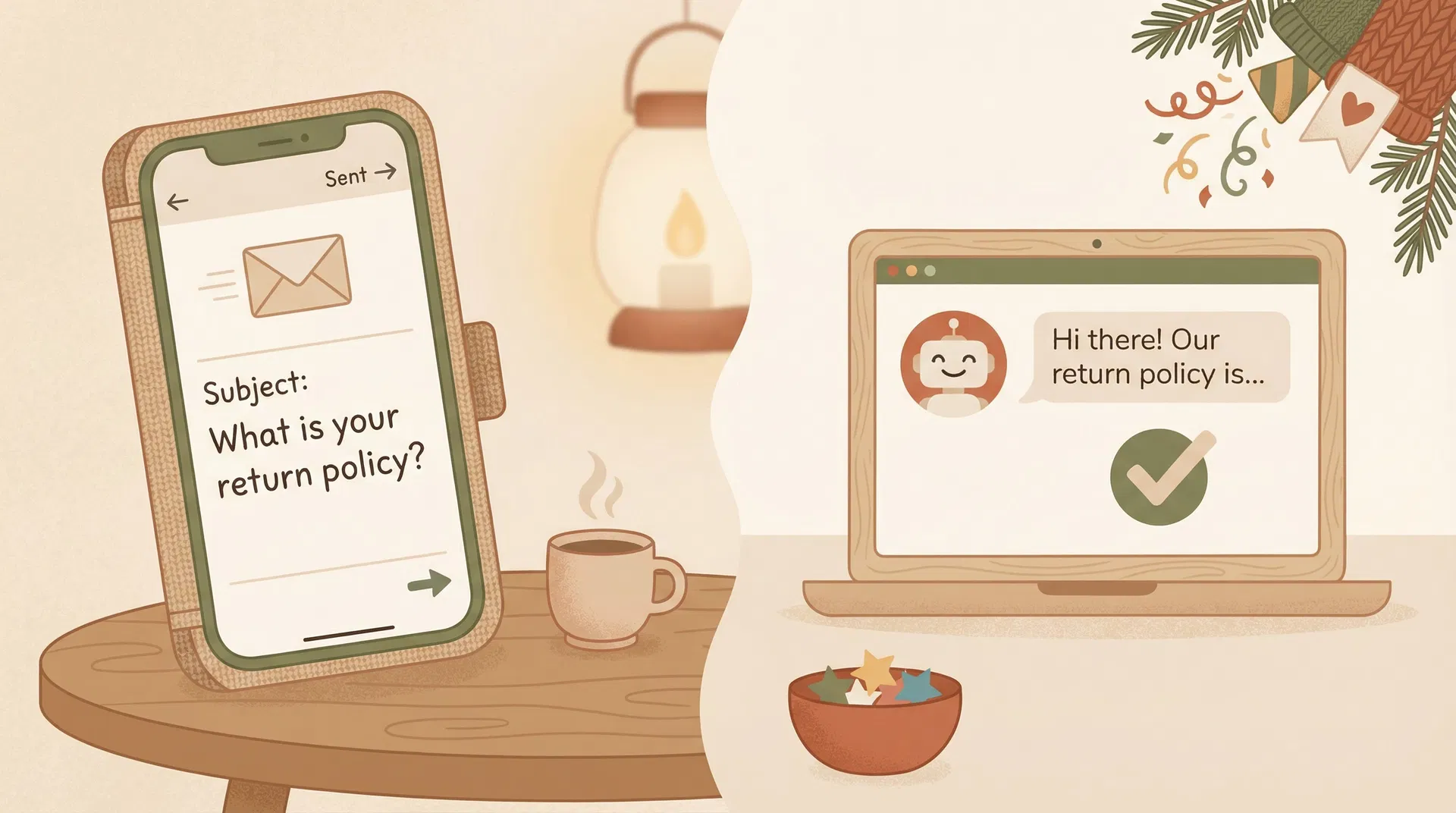
Connect your Gmail to Manus, then set up your agent and schedule in a single conversation. Manus checks your inbox twice a day on weekdays, drafts replies from your knowledge base, and you batch-approve them with a click. It tracks which emails it has already replied to, so duplicates are never sent.
Customer Emails You
A customer sends a question to your support email address.
Manus Reads Your Inbox
Twice a day on weekdays, Manus checks Gmail for new support emails via its direct connection.
Manus Drafts a Reply
Your agent finds the answer in your knowledge base and writes a friendly reply.
You Click Confirm
Gmail requires one click to approve each reply. Batch-approve them in 30 seconds.
Important: Everything Must Happen in One Conversation
Manus does not remember information between separate tasks. Steps 3, 4, and 5 (uploading documents, creating the knowledge base, and setting up the schedule) must all be done in a single Manus conversation. If you close the task and start a new one, Manus will not know about your knowledge base or agent instructions. The prompt in Step 4 is designed to handle everything at once. (Step 0 registration and Step 2 Gmail setup are separate one-time tasks.)
Sign Up for Manus
Create your free account — takes less than a minute
Before anything else, you need a Manus account. Manus is the AI platform that will power your support agent. Signing up is free and only takes a minute — you can use your Google, Microsoft, or Apple account to get started instantly.
What to do
Quick Links
Pro tip: You can sign up with your Google, Microsoft, or Apple account for the fastest setup. No credit card required.

Gather Your Support Documents
Collect the files your agent will learn from — before you open Manus
Your AI agent is only as smart as the information you give it. Instead of manually typing out Q&As, simply gather the documents you already have — your FAQ page, return policy, shipping info, product catalog, etc. You will upload these directly into Manus in Step 3, and Manus will read through them and build the knowledge base for you.
What to do
What it looks like

What to gather (examples)
Example files to gather:

• FAQ.pdf — Your frequently asked questions page
• return-policy.txt — Your return and refund policy
• shipping-info.docx — Shipping times, costs, and regions
• product-catalog.pdf — Product names, descriptions, and pricing
• contact-info.txt — Your support email, phone number, business hours

Don't have these as files? No problem:
1. Go to your Shopify Admin → Settings → Policies
2. Copy each policy into a Google Doc or Notepad
3. Save as .txt or .pdf
Pro tip: You don't even need to download anything. Just paste the links to your Shopify policy pages (like yourstore.com/pages/faq or yourstore.com/policies/shipping-policy) directly into Manus — it will visit the pages and read them for you. Mix and match: some files, some URLs, whatever is easiest.

Connect Gmail to Manus
Give Manus permission to read and reply to your emails
Before starting the main setup conversation, you need to connect your Gmail account. This is done in Settings and only needs to happen once. After this, Manus can read and reply to emails on your behalf.
What to do
What it looks like

Pro tip: Manus uses secure OAuth authentication — the same method used by Google, Apple, and other major platforms. You can revoke access anytime from your Manus settings or your Google account security page.

Upload Your Documents to Manus
Start a new conversation and attach your files
Now it's time to open Manus and upload the documents you gathered in Step 1. This starts the single conversation where everything will happen. Do NOT close this conversation until everything is set up.
What to do
What it looks like

Pro tip: The easiest approach for Shopify owners: just paste your store's policy page URLs and Manus will read the content directly. No downloading needed. You can also upload PDFs, Word docs, text files, or images — mix and match whatever is easiest.
Paste the Setup Prompt
Give Manus its instructions — knowledge base, agent behavior, and schedule
In the SAME conversation where you uploaded your documents, paste the prompt below. This single prompt tells Manus to: (1) read your documents and create a knowledge base, (2) check your inbox and reply to support emails, and (3) set up a recurring schedule so it keeps checking automatically.
What to do
What it looks like

Paste this prompt into the same chat where you uploaded your files
I need you to do three things in this conversation. Please do them all before finishing:

--- PART 1: CREATE MY KNOWLEDGE BASE ---
I have uploaded my support documents (FAQ, return policy, shipping info, product details, etc.) to this conversation. Please:
1. Read through ALL of the uploaded documents carefully.
2. Extract every question, policy, product detail, and piece of useful information.
3. Organize everything into a clean Q&A format.
4. Save the result as a file at /home/ubuntu/support_knowledge.md

Make sure the knowledge base covers: return/refund policies, shipping info, product details, contact information, and any other topics found in my documents.

--- PART 2: TEST THE AGENT ONCE ---
Search my Gmail inbox (use query: newer_than:3d) for recent customer support emails (about orders, shipping, returns, refunds, product questions, etc.).

Before replying to any email, check the deduplication file:
1. Read /home/ubuntu/replied_threads.txt (create it if it does not exist).
2. If the email's thread ID is already in that file, SKIP it — you have already replied.
3. If the thread ID is NOT in the file, proceed with the reply.

For each NEW support email:
1. Read the customer's question carefully.
2. Search /home/ubuntu/support_knowledge.md for the answer.
3. If you find the answer, reply to the customer in a friendly, casual tone. Start with 'Hey there,' and keep it warm and helpful.
4. If you cannot find the answer, reply with: 'Thanks for reaching out! That is a great question — I have passed it along to our team and they will get back to you within 24 hours.' Then forward the email to [email protected].
5. After replying, IMMEDIATELY append the thread ID to /home/ubuntu/replied_threads.txt so future runs skip it.
6. Ignore any emails that are not customer support questions (newsletters, spam, vendor invoices, etc.).

--- PART 3: SET UP THE RECURRING SCHEDULE ---
Set up a recurring scheduled task that runs twice per day on weekdays only — once at 9:00 AM and once at 2:00 PM, Monday through Friday:

Search my Gmail inbox (use query: newer_than:3d) for recent customer support emails. Before replying to any email, read /home/ubuntu/replied_threads.txt and skip any thread ID already listed. For each new support email, search /home/ubuntu/support_knowledge.md for the answer and reply in a friendly, casual tone starting with 'Hey there,'. If the answer is not in the knowledge base, reply saying it has been escalated and forward to [email protected]. After each reply, append the thread ID to /home/ubuntu/replied_threads.txt. Ignore non-support emails.

Please confirm when all three parts are done.
Pro tip: Customize the tone! Change 'Hey there,' to match your brand voice. If you're formal, try 'Dear valued customer,'. If you're playful, try 'Hey friend!' After Manus creates the knowledge base, ask it to show you the file so you can review what it extracted.
Wait for Confirmation
Make sure Manus completed all three parts before closing
After sending the prompt, Manus will work through all three parts: creating the knowledge base file, checking your inbox, and setting up the recurring schedule. Do NOT close the conversation until Manus confirms all three are done. Note: if Manus finds support emails during the initial check, Gmail will ask you to click 'Confirm' before each reply is sent — this is normal and expected.
What to do
What it looks like

Pro tip: The schedule is set to run twice per day (9 AM and 2 PM, weekdays). Each run creates a new conversation in your Manus task list. Just check Manus twice a day, open the latest conversation, and batch-approve the replies. You can adjust the times or frequency later in Settings → Scheduled Tasks.
Good to Know: The Confirm Step
Gmail has a built-in security safeguard you should know about.
When Manus drafts a reply to a customer, Gmail will ask you to click "Confirm" before the email is actually sent. This is a security feature — it prevents any AI from sending emails without your knowledge. This means your agent is a "draft-and-approve" assistant, not a fully autonomous one.
What this looks like in practice:
🤖 Manus does automatically
- \u2022Checks your inbox and skips already-replied emails
- \u2022Reads and understands the question
- \u2022Finds the answer in your knowledge base
- \u2022Writes a perfect reply in your brand voice
👆 You do (3 seconds each)
- \u2022Read the draft reply
- \u2022Click "Confirm" to send it
⚡ The batch-approve workflow
- \u2022Schedule runs at 9 AM and 2 PM weekdays
- \u2022Each run creates a new conversation
- \u2022Open it, review drafts, click Confirm
- \u2022Your entire support queue — cleared in 30 seconds
This is actually a good thing when you're starting out — you get to review every reply and build confidence in your agent's accuracy before trusting it fully.

Test Your Agent
Make sure everything works before going live
Your automated support system is now set up! Before you rely on it, run three quick tests to make sure everything is working correctly. Use a different email address (like a personal Gmail) to send test emails to your support address. Remember: you will need to click 'Confirm' in Manus for each reply before it is sent.
What to do
What it looks like
You Did It!
Your AI support agent is now live. It checks your inbox twice a day, drafts replies from your knowledge base, and you approve them with a click.
Remember to update your knowledge base as your business evolves, and review agent replies weekly to keep quality high.
What Else Can You Build?
Now that you've built your first AI agent, here are more projects you can vibe code with Manus to help your business.
Inventory Tracker
Build a dashboard that monitors your Shopify stock levels and alerts you when products are running low.
Example prompt:
"Build me a web dashboard that connects to my Shopify store and shows inventory levels with low-stock alerts."
Sales Report Generator
Create a scheduled task that emails you a weekly sales summary with top products, revenue, and trends.
Example prompt:
"Set up a weekly scheduled task that analyzes my Shopify sales data and emails me a summary report every Monday."
Product Description Writer
Upload product photos and specs, and let Manus generate SEO-optimized descriptions for your store.
Example prompt:
"I'm uploading product photos and specs. Write SEO-optimized product descriptions for my Shopify store."
Social Media Content
Generate a week's worth of social media posts, captions, and hashtags tailored to your brand.
Example prompt:
"Create 7 days of social media posts for my Shopify store including captions and hashtags for Instagram and Facebook."
Email Campaign Drafter
Draft promotional emails, abandoned cart follow-ups, and seasonal campaigns in your brand voice.
Example prompt:
"Draft a promotional email campaign for my upcoming sale, plus an abandoned cart follow-up email, in a friendly tone."
Review Response Agent
Set up an agent that drafts thoughtful replies to customer reviews — both positive and negative.
Example prompt:
"Check my Google Business reviews and draft personalized replies for each new review in a warm, professional tone."